

What you will learn
In this challenge, you will learn how to:
- Complete eCheck-In before your visit
- Join a video visit from the MyChart app
- Allow your camera and microphone
- Fix a problem if something goes wrong
Every challenge works the same way.
First, you watch a few videos and read some instructions about how to complete tasks about managing your own healthcare. Then, you practice by helping a character in a scenario. Finally, you will check your new skills to be sure you can do the tasks yourself. You can come back to any challenge at any time.
You are not being graded and there is no time limit.
Watch & Learn
This section will help you join a video visit. If you are on a computer, select each step by clicking on it. If you are on a phone, use the drop down to select each step.
eCheck-In lets you take care of paperwork before your visit starts, so you do not have to do it during your appointment time. You can do eCheck-In up to 7 days before your visit. There are often a lot of forms and questionnaires to fill out, so try to finish it before the day of your appointment so you are not rushing.
During eCheck-In, you may be asked to confirm your personal information, review your medications and allergies, answer health questions, and pay a visit copay.
Step 1: When eCheck-In is available, your appointment will show on your home screen with a button that says Get Ready. Tap Get Ready to check in.
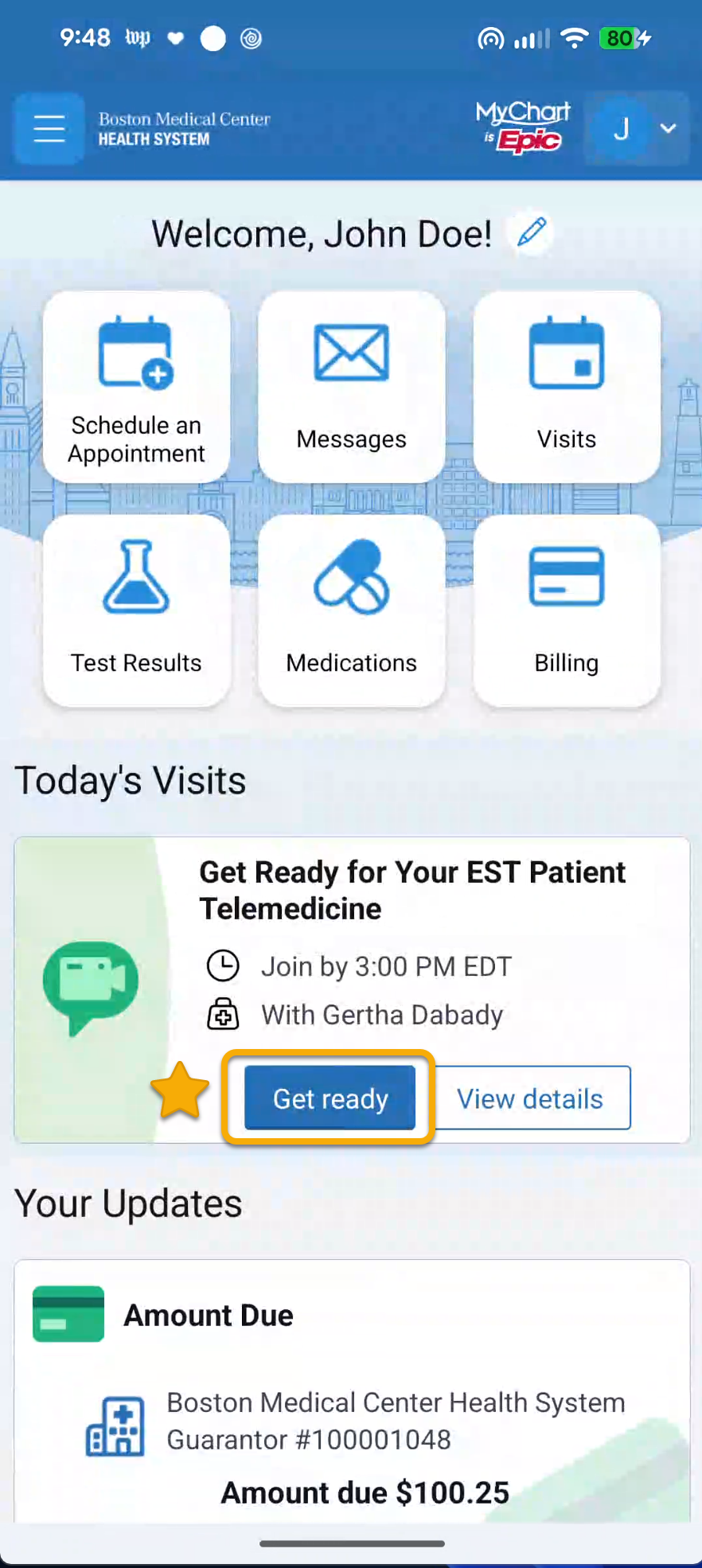
Step 2: Answer the questions about your health, medications, and insurance. Answering all the questions can take a while, so be sure to give yourself plenty of time. Tap Submit when you are done. Check-in is not complete until you have completed all the questions and forms.
Step 1: When it is time for your visit, you may get a text message with a link. The text message may have more information in it, including other links, but the link to the appointment is the first link in the message. Tap the link, then enter your name and tap Join Appointment.
Step 2: You may need to allow the browser to use your camera and microphone. When you see the prompt asking for permission to allow your camera or microphone, tap Allow.
You may need to wait for your doctor to join. This is normal — it is like a waiting room at the doctor's office.
Once you’re in the telehealth appointment, you will see some icons on the bottom of your screen.
Settings: This icon will open a menu with important settings. You can check your camera and microphone settings, blur your background, and activate captions. If your camera or microphone aren’t working when you start your appointment, check here to make sure the correct devices are selected.

Logout and Help: The icon that looks like three horizontal lines will open a menu that allows you to access help documentation and logout of the app.

Participants List: The icon that looks like people will show you a list of who is in the appointment. If you have a translator joining or another support person, there will be more than two names in this list.

Messaging: You can tap the icon that looks like a speech bubble to access the chat to send your provider a typed message.

Participant view: The icon with a rectangle and three squares will change your view of the participants in the call.

If your camera or microphone is not working during a visit, try these things:
Step 1: Quick fix: Look at the bottom of the video screen. If the camera or microphone icon has a line through it, tap the icon to turn it back on.
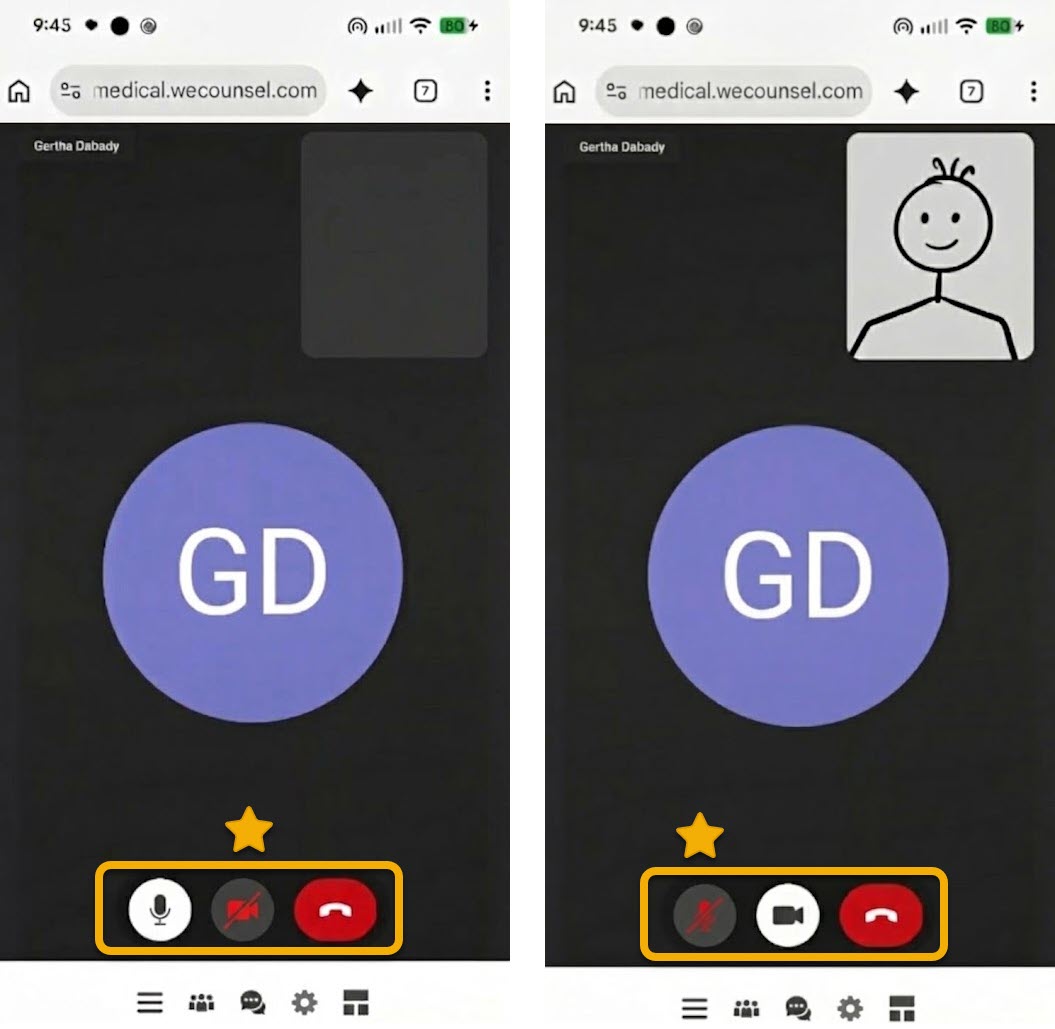
Step 2: If you are on a phone or tablet, open your device’s Settings. Go to Apps, find Chrome (Android) or Safari (iPhone), tap Permissions, and make sure Camera and Microphone are set to Allow.
If you are on a computer, go to your browser’s Settings, choose Privacy and Security, then Site Settings, and ensure your Camera and Microphone are allowed and that the correct device is chosen. This process is similar for the Safari browser.
Practice
In this section, you will help a character join their video visit. This is a safe place to practice. You are not using your own information, and you cannot break anything.

Help Elena
Elena is helping her mother Carmen join a video visit with her doctor. They have joined the appointment, but it seems like Carmen’s camera isn’t working.
Question 1
Where is the first place Carmen should tap to troubleshoot her camera?
Question 2
The video call has started. The screen says "Waiting for provider." Elena is not sure if something went wrong. It has been two minutes.
What should she do?
A. Close the app and try to restart the visit.
Not quite. This is the normal waiting room. If Elena closes the app, she may have trouble getting back in. The doctor will join when they are ready.
B. Wait patiently for the doctor to join the call.
Correct! This is like a waiting room at the doctor’s office. The doctor will appear on the screen when they are ready.
C. Tap "Begin Visit" again to restart the video call.
Not quite. Elena does not need to restart. She is already in the right place. Tapping Begin Visit again might cause an error.

Help Marcus
Marcus is joining a video visit during his lunch break. He is using his own phone. He completed eCheck-In this morning and is ready to join.
Question 1
Marcus has tapped Join Session. A message pops up on his screen: "Allow camera?" What should Marcus tap?
Question 2
Marcus is in the video visit. He can hear the doctor, but the doctor says she cannot hear him. Marcus looks at the bottom of the screen. The microphone icon is red with a line through it. What should he tap first?
Do it yourself
Check that you know how to join a video visit. If you already tried some of these steps while watching, check them off. For anything you have not done yet, try it now or practice before your next appointment.
I know where to look for appointment information in MyChart.
I can check in for a telehealth visit.
I can allow MyChart to access my phone camera and microphone.
I can turn my video and audio on and off.
Survey
Your answers to these questions will help us make the toolkit better for everyone.
Need help right now?
For assistance with MyChart, call BMC MyChart Support at 844-635-1390 or ask your clinic staff at your next visit. For telehealth support, call 617-638-6870 or 423-207-4554.
If you need help with food, housing, transportation, or other social services, visit massthrive.org to find a directory of programs available in your area in more than 100 languages, or dial 2-1-1 from any phone to be connected to local services for food, shelter, and more.
*All images are AI-generated.