
What you will learn
In this challenge, you will learn how to:
- Request a medication refill.
- Schedule a follow-up appointment.
- Send a secure message to your doctor.
- Check test results.
Every challenge works the same way.
First, you watch a few videos and read some instructions about how to complete tasks about managing your own healthcare. Then, you practice by helping a character in a scenario. Finally, you will check your new skills to be sure you can do the tasks yourself. You can come back to any challenge at any time.
You are not being graded and there is no time limit.
Watch & Learn
Here are four common tasks in MyChart. If you are on a computer, select each task by clicking on it. If you are on a phone, use the drop down to select each step.
Important: You can only request refills through MyChart for prescriptions filled at a pharmacy connected to BMC (like BMC Shapiro Pharmacy). If your prescription is at an outside pharmacy (like CVS or Walgreens), contact that pharmacy directly.
Step 1: On the home screen, tap the Medications tile.
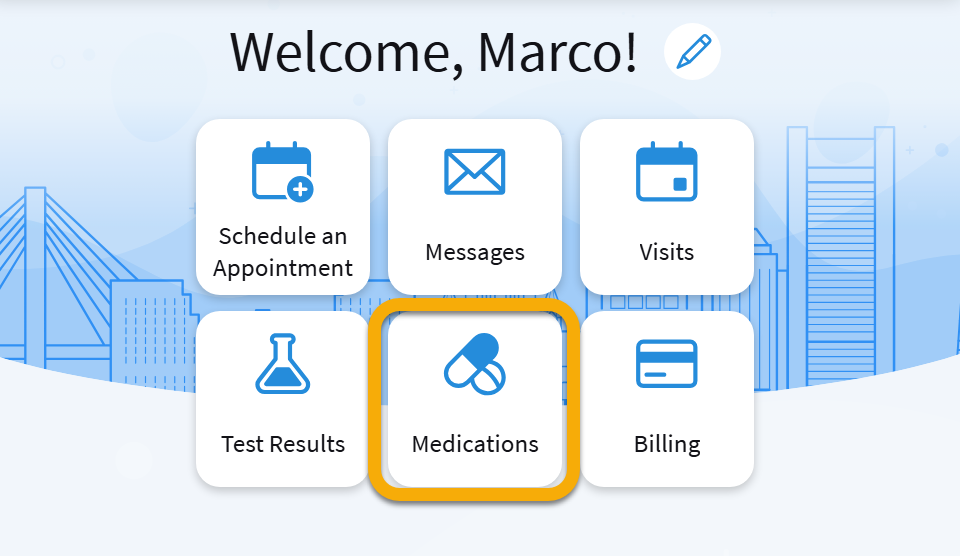
Step 2: Find the medication you need and tap Request Refill.
Step 3: Make sure the medication you want to refill is selected. You can select other medications from this screen, too.
Step 4: Type any comments you want the provider to see.
Step 5: Make sure the correct pharmacy is selected and tap Next. On the next screen, tap Submit.
Step 1: On the home screen, tap the Schedule an Appointment tile.
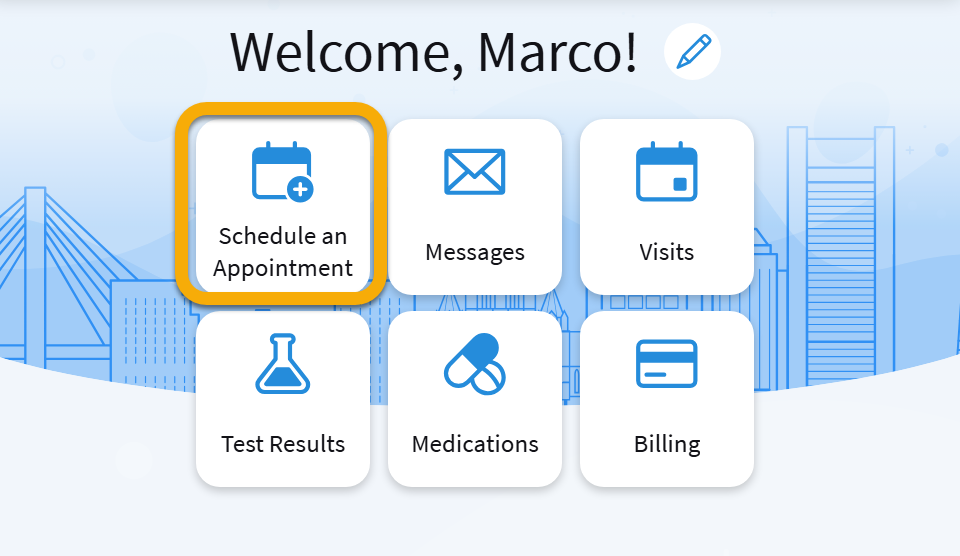
Step 2: Choose the provider you wish to see.
Step 3: Choose your appointment type.
Step 4: Pick a date range and daily times that work for you. This is optional.
Step 5: Enter any comments you wish the provider to read in advance of your appointment. This is optional.
Step 6: Tap Send request.
Tapping Send Request does NOT mean your appointment is scheduled. Your provider’s office will call you to confirm the details. If you don’t hear from your provider within a few days, call their office.
Messages in MyChart are private and secure. Your doctor or care team will usually reply within 1–3 business days. Do not use messages for emergencies. If you need help right away, call 911 or go to the nearest emergency room.
Step 1: On the home screen, tap the Messages tile.
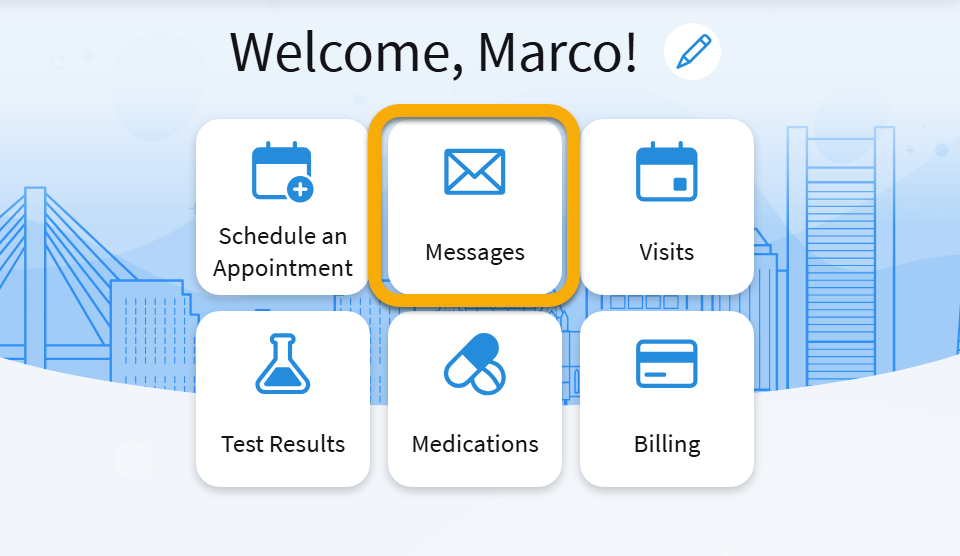
Step 2: Tap Send a Message.
Step 3: Choose what you would like to do. Most general questions for your care team about your health will be sent with Ask a medical question.
Step 4: Choose what type of medical question you have.
Step 5: Choose the provider you wish to message.
Step 6: Type your message and tap Send. You may also attach files or images to your message in MyChart.
You can see test results for labs and imaging in MyChart as soon as they are available.
Step 1: On the home screen, tap Test Results.
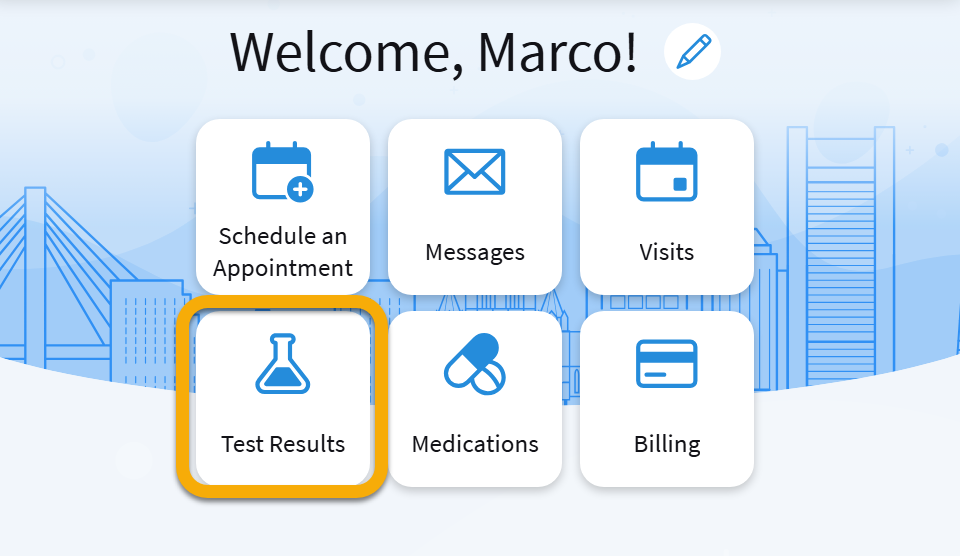
Step 2: You can filter for specific results or just choose a test from the list.
Step 3: Depending on the test, you may see your results represented in colors—green means your results are normal and yellow means they are outside the typical range. Call your provider if you have any questions about your test result.
Practice
In this section, you will help a character complete a common MyChart task. This is a safe place to practice. You are not using your own information, and you cannot break anything.

Help Rosa
Rosa takes levothyroxine for her thyroid every day. She just noticed she is down to her last few pills. She wants to use MyChart to request a refill so she does not have to call the pharmacy.
Question 1
Rosa is on the MyChart home screen. She wants to refill her medication.
Which tile should she tap first?
Question 2
Rosa tapped on her levothyroxine and then tapped Request Refill. A new screen appeared with the medication name, dosage, and pharmacy.
Is she done?
A. Yes, the request has been sent to the pharmacy automatically.
Not quite. Not yet. Rosa still needs to tap Confirm on this screen. Without that last step, the request does not go through.
B. No, she needs to tap Confirm to submit the request.
Correct! Rosa needs to tap Confirm to send her refill request. This is the last step. After this, her pharmacy will get the request and she will get a message in MyChart when it is ready.
C. No, she needs to call the pharmacy to approve the refill.
Not quite. Rosa does not need to call. MyChart sends the request to her pharmacy. She just needs to tap Confirm.
Help Marcus
Marcus got a notification that his lab test results are ready. He wants to check the results.
Question 1
Marcus is on the MyChart home screen. Where should he tap to see his lab results?
Question 2
Marcus is reading his results. His free testosterone is in the yellow zone. He wants to ask his doctor about it. Where does he tap to send a message to his doctor?
Do it yourself
Try these tasks on your own MyChart account. If you already did some of these steps while watching, check them off. For anything you have not done yet, try it now.
I can request a medication refill in MyChart.
I can schedule an appointment.
I can send my provider a message.
I can check my test results.
Survey
Your answers to these questions will help us make the toolkit better for everyone.
Need help right now?
For assistance with MyChart, call BMC MyChart Support at 844-635-1390 or ask your clinic staff at your next visit. For telehealth support, call 617-638-6870 or 423-207-4554.
If you need help with food, housing, transportation, or other social services, visit massthrive.org to find a directory of programs available in your area in more than 100 languages, or dial 2-1-1 from any phone to be connected to local services for food, shelter, and more.
*All images are AI-generated.