

What you will learn
In this challenge, you will learn how to:
Create a new email account
Use two-factor authentication to verify your account
Keep your login information safe
Every challenge works the same way.
First, you watch a few videos and read some instructions about how to complete tasks about managing your own healthcare. Then, you practice by helping a character in a scenario. Finally, you will check your new skills to be sure you can do the tasks yourself. You can come back to any challenge at any time.
You are not being graded and there is no time limit.
Watch & Learn: Set up Gmail on your phone
There are five steps here to help you create a Gmail account. If you are on a computer, select each step by clicking on it. If you are on a phone, use the drop down to select each step.
If you want to use your computer to set up your account, follow the set of steps below called Watch & Learn: Set up Gmail on your computer.
You may already have the Gmail app on your phone. If you don’t, start at Download the Gmail App. If you already have the app, skip to Create a Gmail Account.
Step 1: Open the Play Store (Android) or App Store (iPhone) on your phone.

Step 2: Tap the search bar and type "Gmail." The icon looks like this.

Step 3: Tap Install or Get to download the app.
Step 1: Open the Gmail app and tap Create account.
Step 2: Type your first name and last name.
Step 3: Provide some basic personal information.
Step 4: Choose an email address that is easy to remember. Tap Next.
If the email address you chose is already taken, use a variation that is easy to remember. You might add your middle initial or some numbers. You cannot change your Gmail address after you create it, so take a moment to pick one you like.
Step 1: Type a strong password in the first box. Use 8 or more characters with a mix of letters, numbers, and symbols.
Step 2: Type the same password again in the second box.
Step 3: Tap Next.
If your passwords don't match, try again. Make sure you type the exact same thing in both boxes.
Step 1: If you are setting up your Gmail on a phone, you may see a screen asking you to verify your phone number. Select Verify.
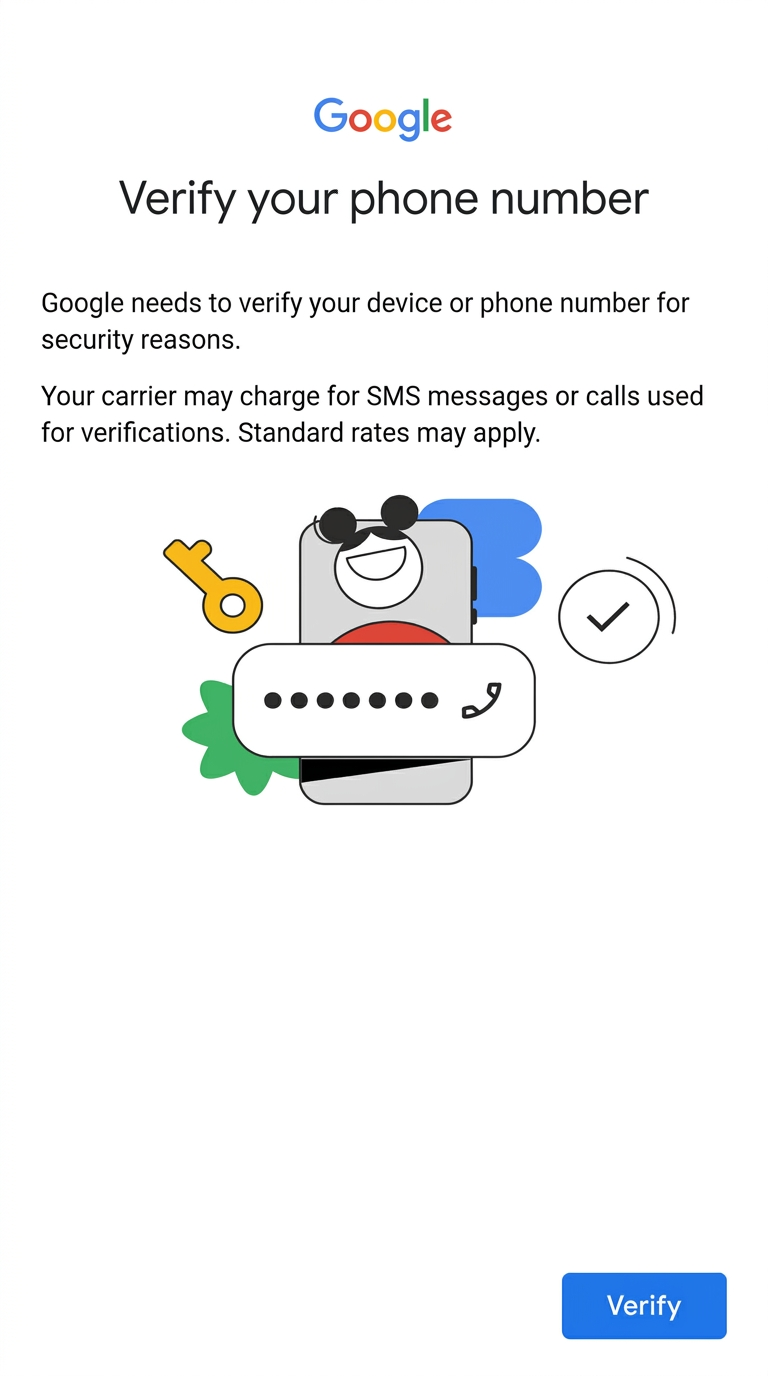
Step 2: Google may be able to verify your phone automatically. If not, you will get a text message with a 6-digit code. This is a normal safety step — it is free and no one will charge you. You can usually tap the code to copy it.
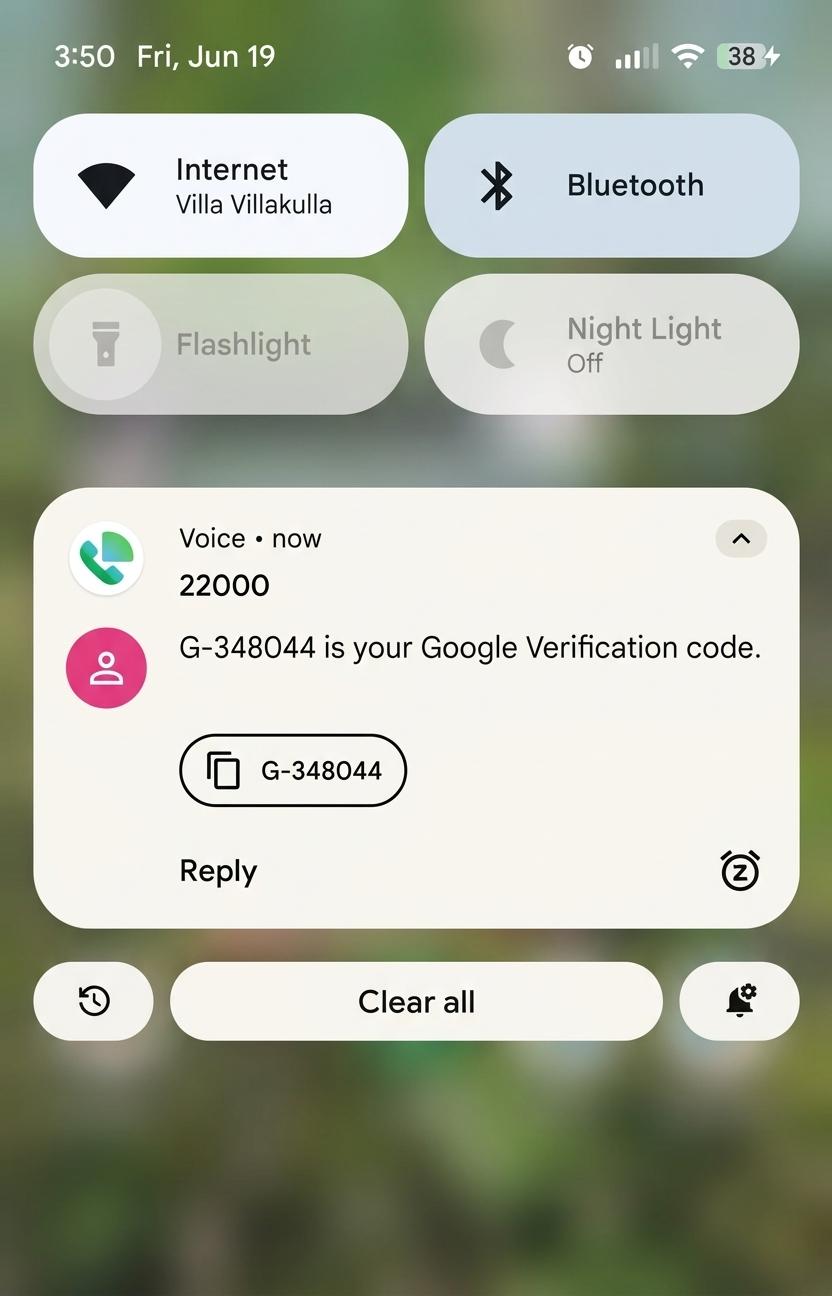
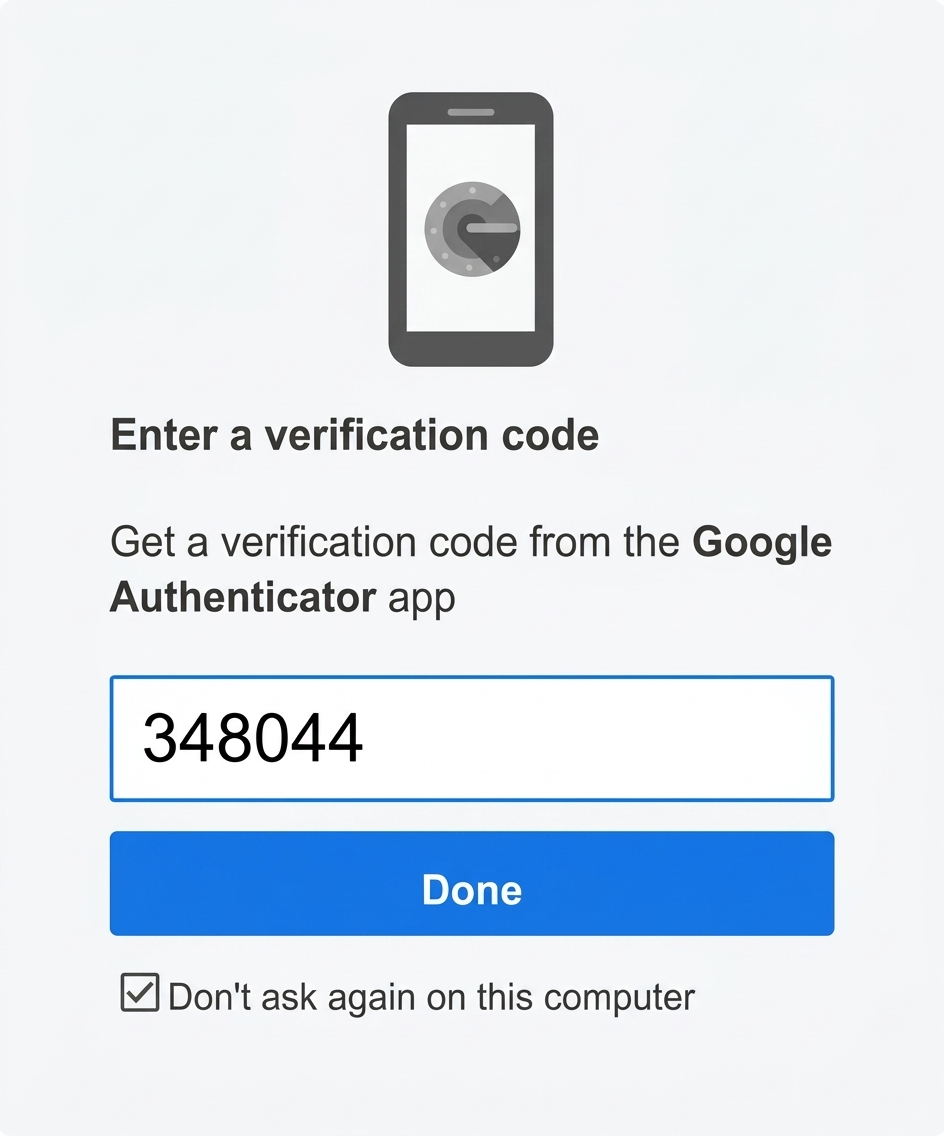
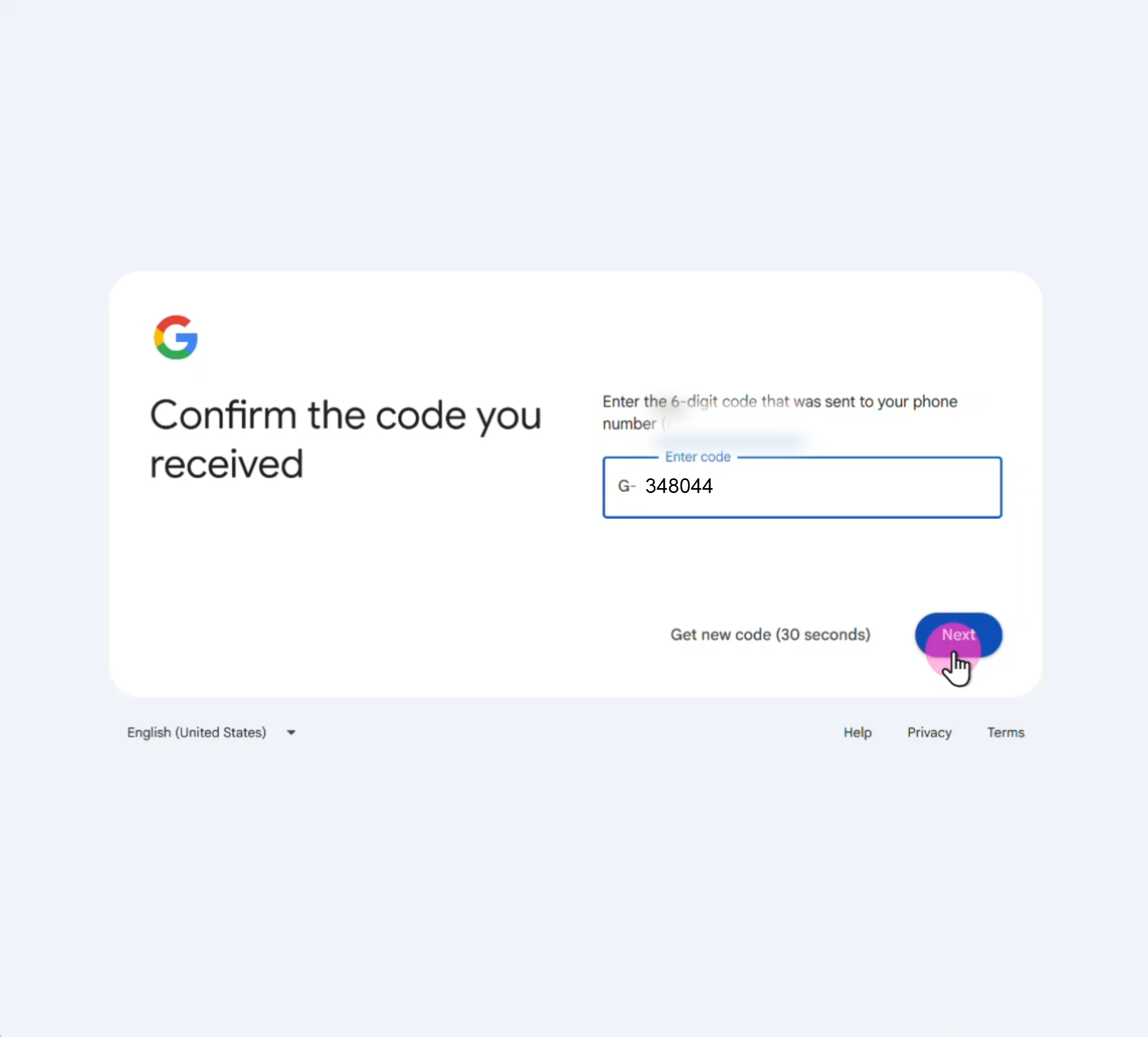
Step 3: Go back to the Gmail app. Type or paste the code and tap Done or Verify. Note that you only need the numbers, not the letter G. So, in the example in the image, you will only type 348044 in the verification field.
Write down your new email address and password and keep it somewhere safe.
Do not save your password only on your phone — if you lose your phone, you will lose your login information too.
Watch & Learn: Set up Gmail on your computer
If you are using a computer to set up your email, follow these five steps. If you are on a computer, select each step by clicking on it. If you are on a phone, use the drop down to select each step.
Step 1: Go to http://www.gmail.com and click Create account.
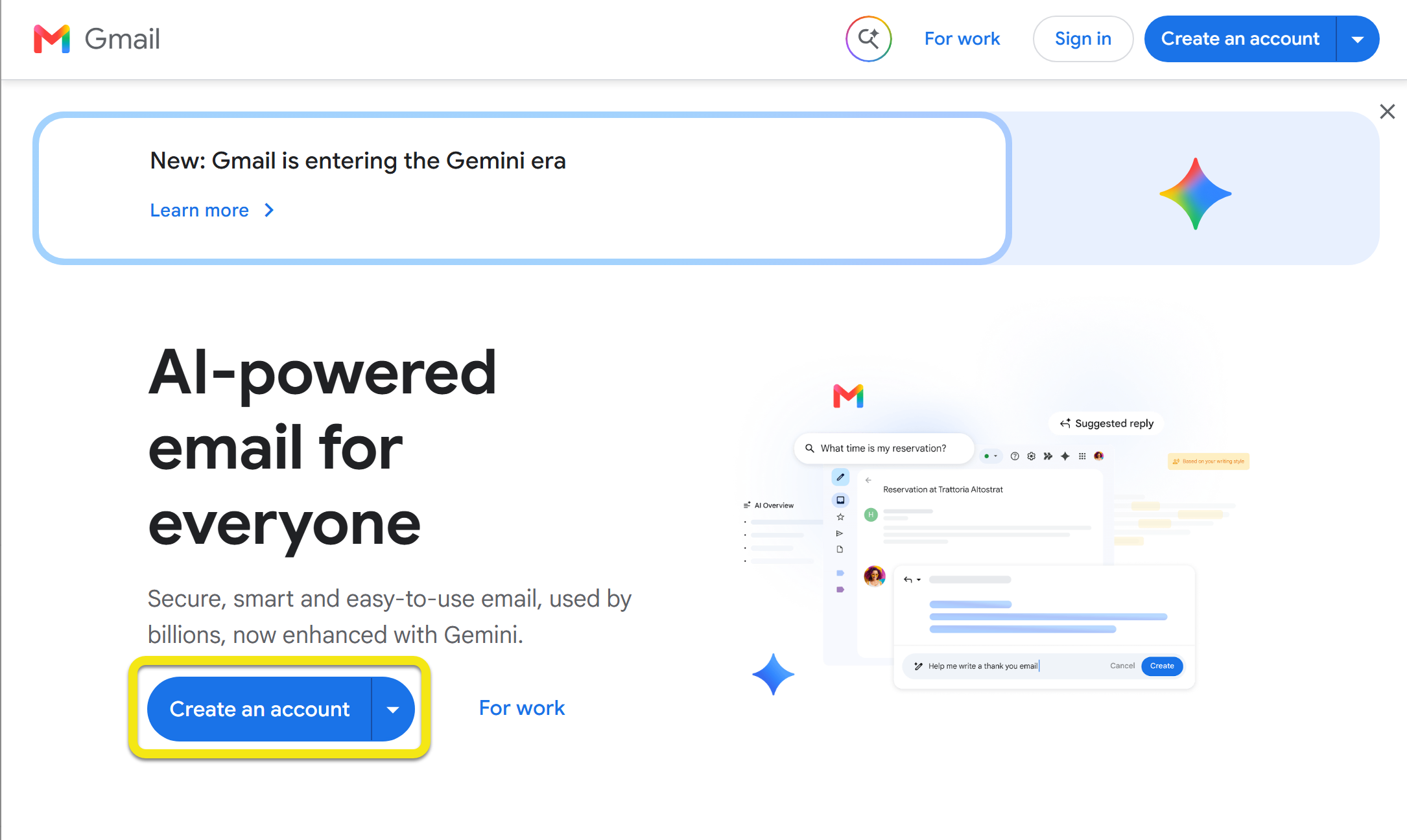
Step 2: Type your first name and last name.
Step 3: Provide some basic personal information.
Choose an email address that is easy to remember. Tap Next.
If the email address you chose is already taken, use a variation that is easy to remember. You might add your middle initial or some numbers. You cannot change your Gmail address after you create it, so take a moment to pick one you like.
Step 1: Type a strong password in the first box. Use 8 or more characters with a mix of letters, numbers, and symbols.
Step 2: Type the same password again in the second box.
Step 3: Tap Next.
If your passwords don't match, try again. Make sure you type the exact same thing in both boxes.
Step 1: Type your mobile phone number and click Next.
Step 2: You will get a text message on your phone with a 6-digit code. This is a normal safety step — it is free.
Step 3: Type the code and click Verify.
Write down your new email address and password and keep it somewhere safe.
Do not save your password only on your phone — if you lose your phone, you will lose your login information too.
Practice
In this section, you will help a character using what you just learned.
Help them: You will read about their situation, then see a picture of an email sign-up page. Tap or click on the correct spot to help the character finish their task.
Learn from Mistakes: If you tap the wrong spot, don't worry! You will get a helpful hint so you can try again.
Remember: This is a safe place to practice. You are not using your own personal information, and you cannot break anything.

Help Marcus
Marcus needs to set up a new email account on his phone. He is on a short break at work. He knows he needs an email to sign up for MyChart, but he has never made one before.
Question 1
Marcus has opened the Gmail app for the first time. He sees the sign-in screen.
What should he tap to start?
Question 2
Marcus has picked his email address and created a password. Now the screen asks for his phone number. It says: "Verify your phone number." Marcus is worried. He thinks he did something wrong or that Google will charge him money.
What should Marcus do?
A. Close the app and start over because there is an error.
Not quite. This is not an error. Google asks for your phone number to keep your account safe. It is free. No one will charge you.
B. Type in his mobile phone number so Google can send him a 6-digit text code.
Correct! This is a normal safety step. Google sends a free text with a code. Marcus types the code to prove it is really him.
C. Wait for a few hours to see if the screen goes away on its own.
Not quite. Google needs a phone number to finish the setup. Without it, Marcus cannot create his account. This step is free and safe.
Do it Yourself
Now create your own email account. If you already did some of these steps while watching, check them off.
If you haven't set up your email yet, try it now.
I can access Gmail on my phone or computer.
I have an email account.
My email address and password are in a safe place.
Survey
Your answers to these questions will help us make the toolkit better for everyone.
Need help right now?
For assistance with MyChart, call BMC MyChart Support at 844-635-1390 or ask your clinic staff at your next visit. For telehealth support, call 617-638-6870 or 423-207-4554.
If you need help with food, housing, transportation, or other social services, visit massthrive.org to find a directory of programs available in your area in more than 100 languages, or dial 2-1-1 from any phone to be connected to local services for food, shelter, and more.
*All images are AI-generated.