
Register for MyChart without a code
If you do not have an activation code (the 15-digit number from your clinic), you can use your email address instead.
When you are on the registration screen that asks for the code, follow these steps:
Step 1: Look for and select the link that says "Don't have a code?" or "Sign up with your information."
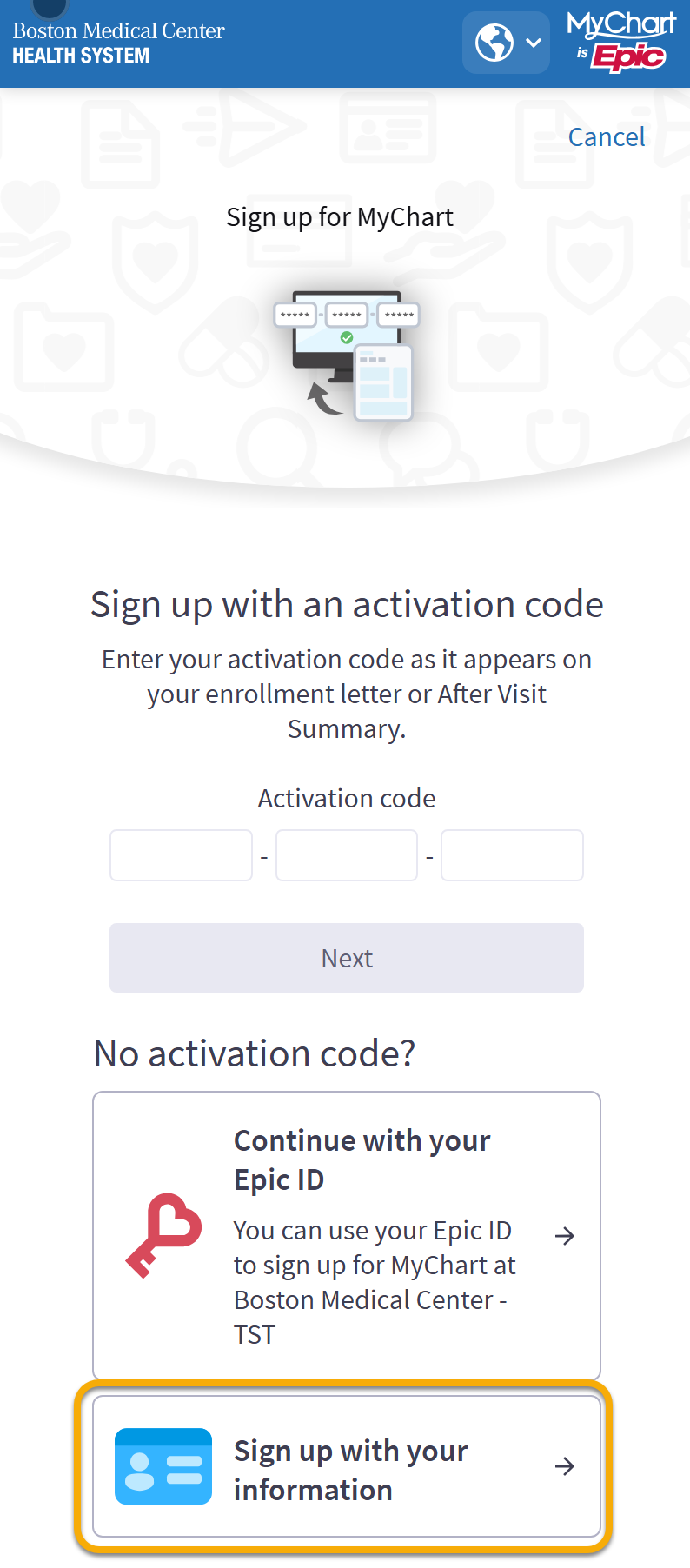
Step 2: After selecting "Sign Up with Your Information," the registration form will appear on the same page. Complete the following sections in order: Name, Address, and Other Information.
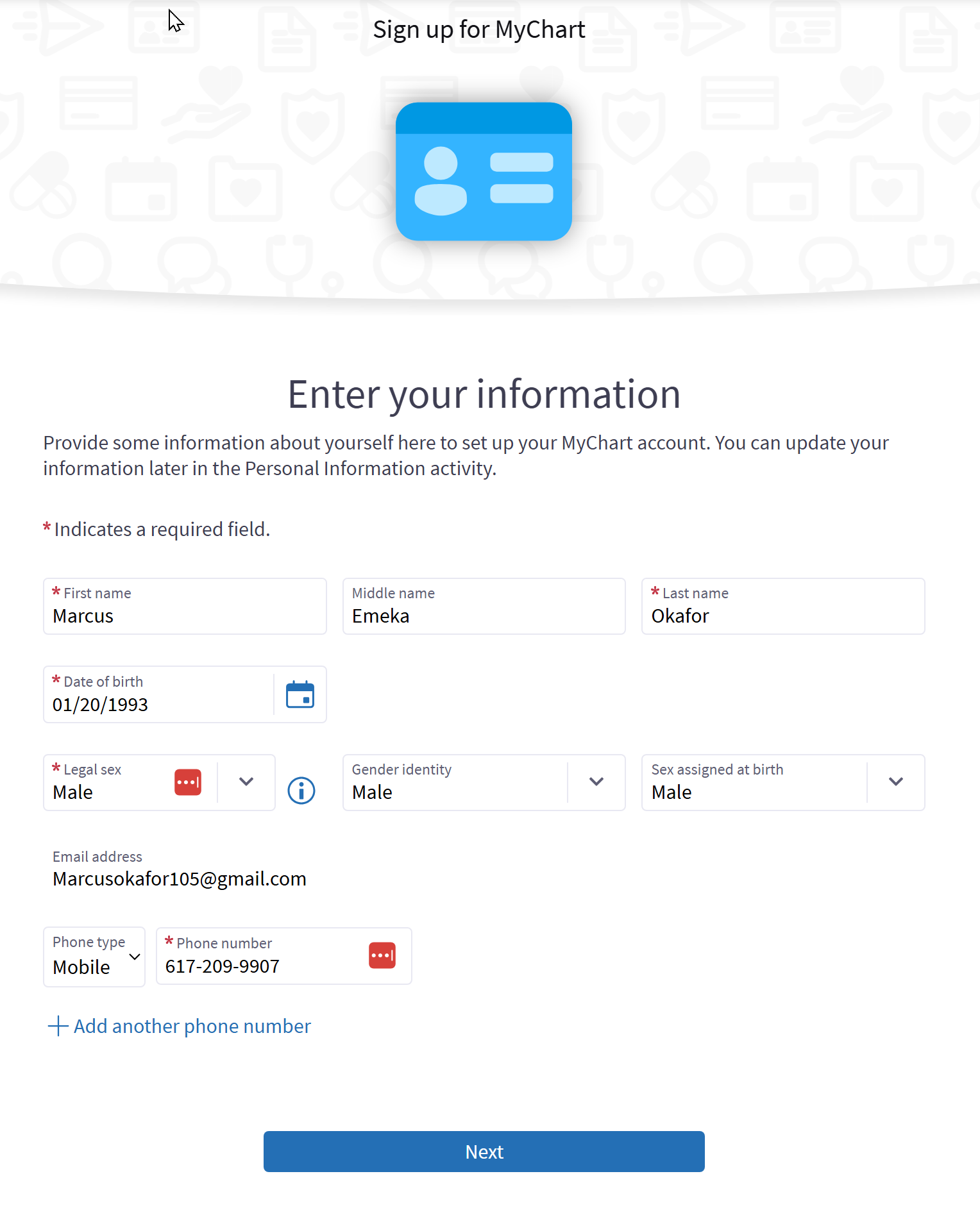
Under Other Information, you will be asked to provide:
- Date of Birth
- Legal Sex
- Phone Number
- Last Four Digits of Your Social Security Number (SSN)
- Email Address
- Optional: Medical Record Number (MRN)
Once you have entered all the required information, select "Next" to continue with the registration process.
Step 3: After selecting "Next," you will create a username and password. Choose a user name and password that is easy to remember. You may want to write them down someplace safe. Then select "Next" to continue. Choose a username and password for your account.
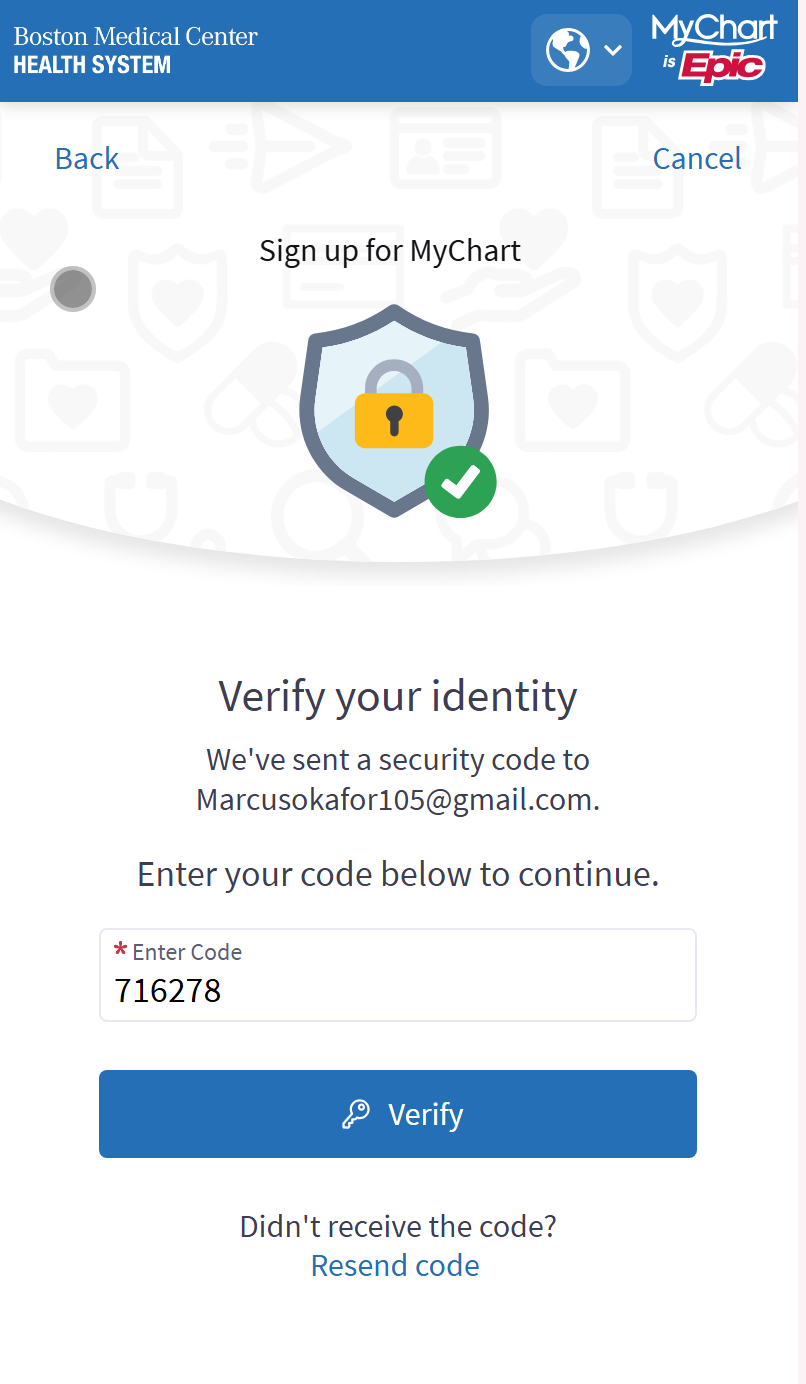
Step 4: After creating a username and password and clicking "Next," you will reach the final step: Identity Verification. A verification code will be sent to your phone number or email address. Enter the code when prompted, then select "Verify" to complete the registration process.
Recover your username or password
If you ever forget your username or password, you do not need to call the clinic. You can recover them from the MyChart sign-in screen.
Step 1: On the sign-in screen, tap Forgot login information?
Step 2: MyChart will ask what you want to recover. Tap Recover your MyChart account. If you also see a choice about an Epic ID, you do not need it. Choose the MyChart account option.
Step 3: Enter the email address or mobile phone number on your MyChart account and tap Send code.
Step 4: Type the security code you receive by text or email, then tap Verify.
Step 5: Enter your date of birth. Your username will appear. If you need a new password, tap Change password.
If you try too many times and get locked out, call BMC MyChart Support at 844-635-1390.
Set up two-factor authentication
Two-factor authentication (also called 2FA) is an extra safety step that protects your account. It makes sure that only you can log in, because only you have your phone. This is the same idea as the code Google sent you when you set up Gmail. It proves you are really you.
Step 1: Type your phone number.
Step 2: You will get a text message with a code. Type the code.
Step 3: Tap Verify.
You did not get your code
When you sign up for MyChart or recover your account, MyChart sends a code to your email or your phone. The screen may call it a verification code or a security code. They are the same thing.
Codes are free. MyChart will never charge you for a text message with a code.
If your code does not arrive, try these steps in order.
Step 1: Wait two or three minutes. Most codes arrive right away, but some are slow.
Step 2: If you asked for the code by email, check your Spam folder. It may also be called Junk. The message is often there instead of your inbox.
Step 3: Check that the email address or phone number on the screen is correct. If there is a mistake, tap Back and fix it.
Step 4: On the Verify your identity screen, look below the Verify button for Didn't receive the code? Tap Resend code. When a new code arrives, the old code stops working. Always use the newest one.
Step 5: If you still do not get a code, call BMC MyChart Support at 844-635-1390.
Change MyChart language before signing in
If you are on a computer or web browser, you can change the language to Spanish or English in the upper right corner of the sign-in screen. If you are on your phone, you must log in first before you can change your language settings. Only Spanish and English are available in MyChart. If you need help in another language, call BMC MyChart Support at 844-635-1390 — interpreter services are available. If you are not a BMC patient, call your clinic for more support.