
Camera not working on iPhone
If tapping the camera icon does not work, you may need to check your phone settings to make sure MyChart can use your camera.
Step 1: Go to your device Settings > Privacy & Security > Camera.
Step 2: Make sure the MyChart switch is On (it should be green).
Camera not working on Android
If tapping the camera icon does not work, check your phone settings. Where you look depends on how you joined.
If you joined from the MyChart app:
Step 1: Go to Settings > Apps > MyChart > Permissions.
Step 2: Tap Camera and choose Allow only while using the app.
If you joined from a link in a text or email:
Step 1: Go to Settings > Apps > Chrome > Permissions.
Step 2: Tap Camera and choose Allow only while using the app.
Microphone not working
If your doctor says they cannot hear you, check the microphone icon at the bottom of the video screen. If the microphone icon has a line through it, your sound is muted. Tap the microphone icon once to unmute.
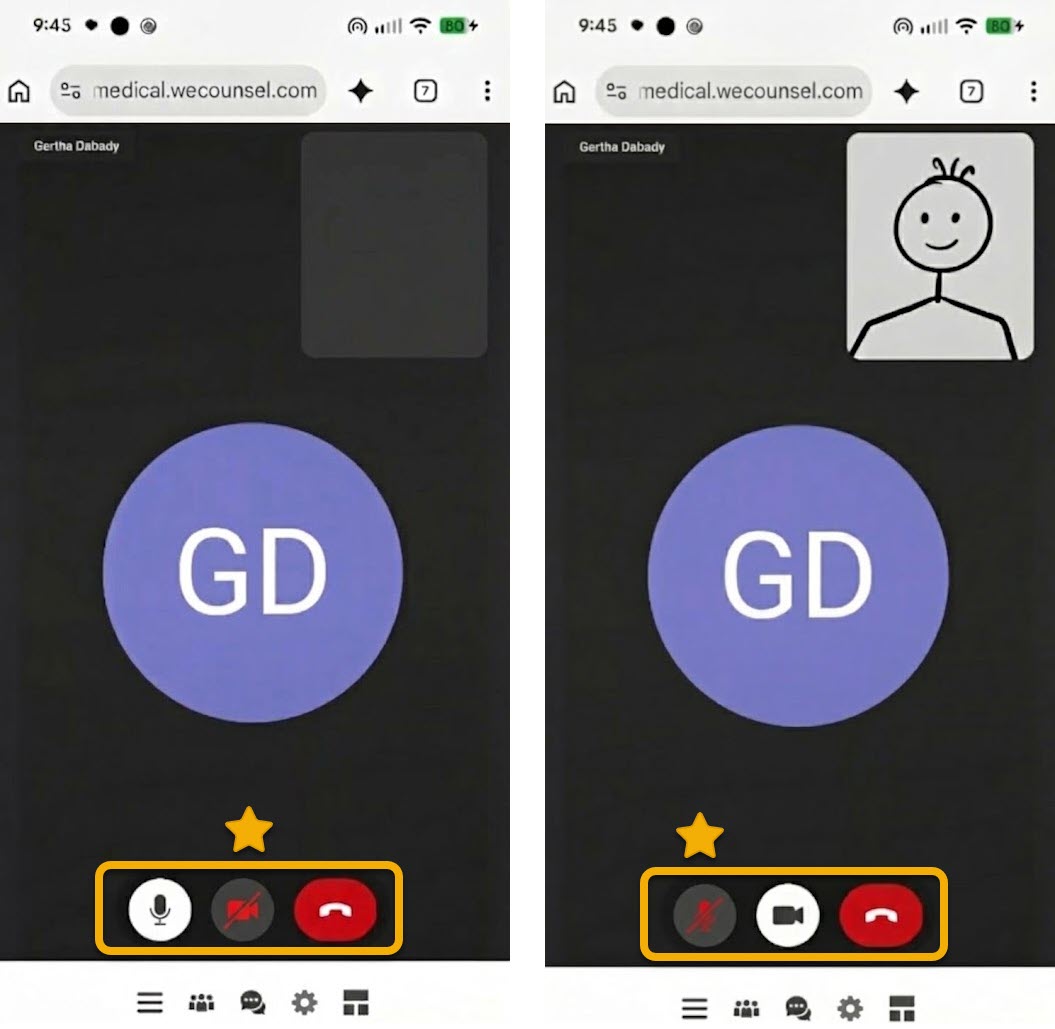
If that does not fix it, follow the camera steps above for your phone, but look for Microphone instead of Camera.
Connection issues
If your video visit stops working, try these steps to get back into your call.
Step 1: If your visit drops, close the app and check your Wi-Fi or data connection. Look for the Wi-Fi icon at the top of your phone screen. If you do not see it, you may not be connected to the internet.
Step 2: Re-enter the waiting room from MyChart.
Wrong waiting room
If you see the wrong patient name or doctor name on the screen, you may be in the wrong waiting room. This can happen if you manage records for a child or parent (proxy access) and you join the visit while logged into the wrong person's account.
Step 1: If you are placed in the wrong waiting room, close MyChart.
Step 2: Check that you are logged into your correct profile. The name at the top of the screen shows whose account you are using.
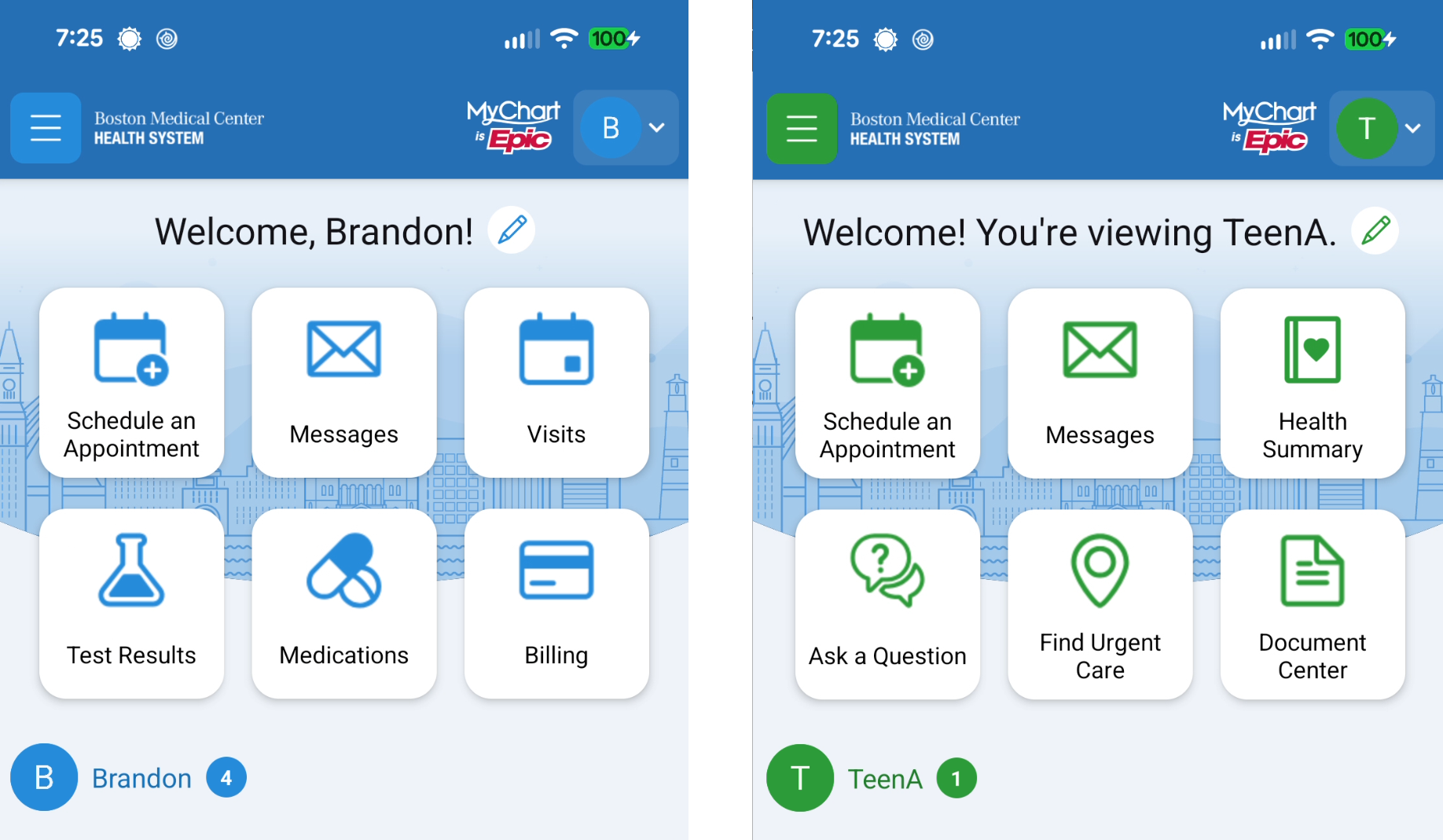
Step 3: If you are in the wrong account, tap the correct name, then try rejoining your visit.