
Choose which notifications you get
You can set up MyChart to send you an alert when new test results are available.
Step 1: Go to Menu > Account Settings > Communication Preferences.
Step 2: Review your contact information and make sure your email address and phone number are correct. If any information is incorrect, click Review Contact Information and update it.
Step 3: Just below Review Contact Information, locate the Settings section.
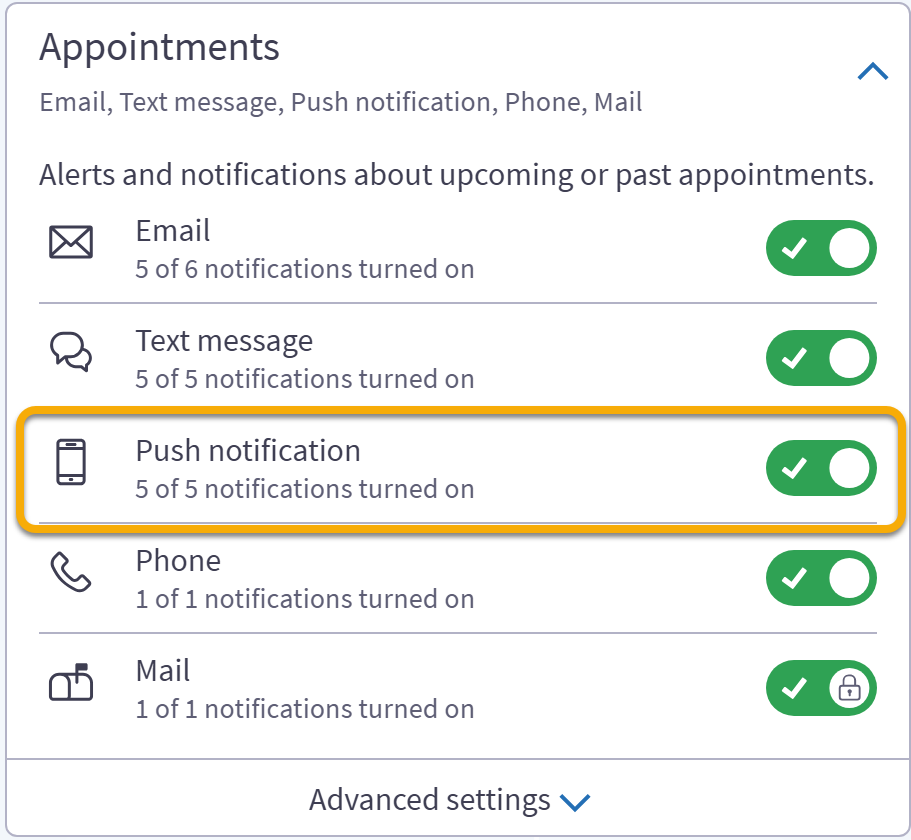
Step 4: Under Settings, choose how you would like to receive notifications. Click the toggle next to Email, Text Message, Push Notification, Phone, and Mail to activate your preferred notification methods. When a toggle turns green, that notification method has been activated.
Step 5: Scroll down to the Details section.
Step 6: Under Details, activate the types of notifications you would like to receive, such as Appointments, Messages, Health, Billing, Questionnaires, Account Management, Telehealth, and To-Do. Click the toggle next to each option you would like to enable. When a toggle turns green, that notification category has been activated.
Step 7: Once you have finished selecting your preferences, click Save Changes to apply your updates.